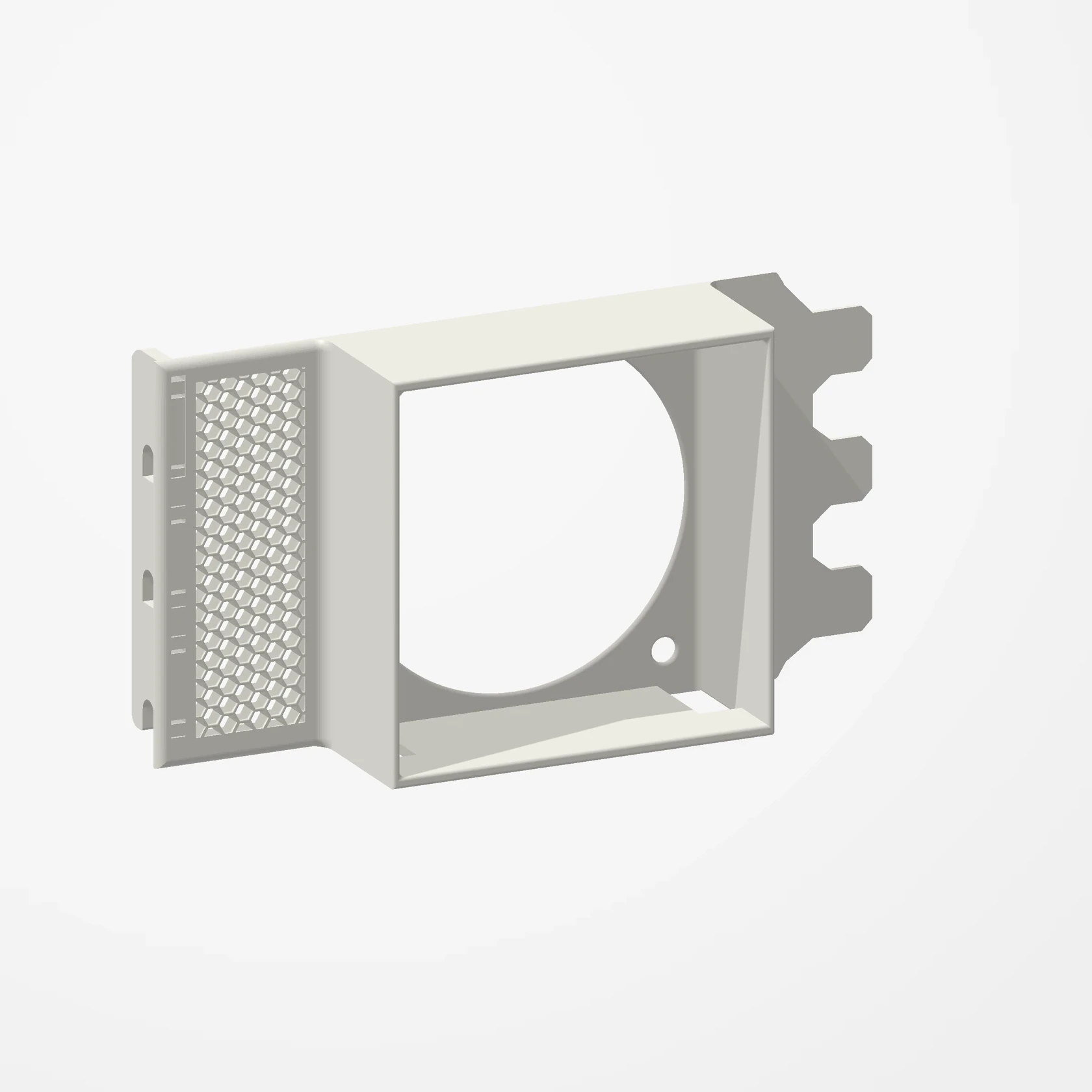
One 60 mm fan · Three slots
High-Profile 60 mm PCIe Fan Mount
In stockPosition a 60 mm fan near your graphics card to direct airflow where it is needed. Uses 3 free PCIe expansion slots. Fans are not included.
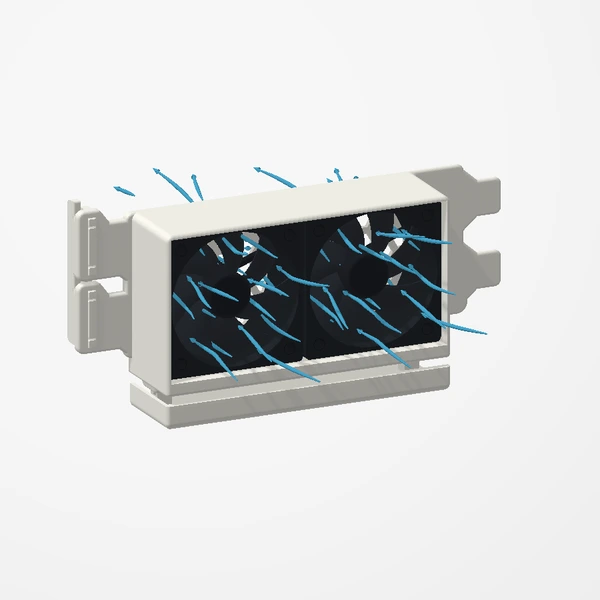
Our tested 1×60 mm configuration reduced GPU temperature by 3°C. GPU fan noise also decreased in our test (not measured in dB). Best suited to tighter cases with limited existing airflow. Results vary by case, hardware, fans and test conditions; temperature and noise improvements are not guaranteed. Check fan thickness and clearance around the GPU. Preview airflow is illustrative.
Manufactured from premium PETG-HF for thermal resistance and structural durability.
Why it’s designed this way
The design puts a dedicated fan near the space beneath the graphics card, where a case may not provide a convenient mounting point. The different sizes address different available spaces; larger does not automatically mean better cooling.
From Etsy customers
Customer reviews
A verified Etsy review of this design, with a photo shared by the customer.
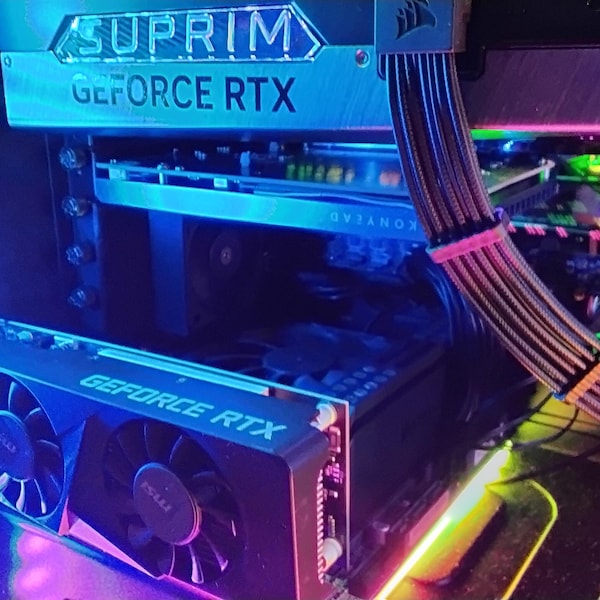
The design and quality of the product are excellent. I considered several options, but the additional ventilation holes ultimately influenced my decision. The product fits perfectly, with no issues whatsoever. It has resolved the heat pocket problem between a 4-slot M.2 card and a secondary ITX PC located at the bottom of my case. I used the TL-B6B fan by Thermalright.
Watch our PCIe fan test
 I Dropped My GPU Temps for Just $0.46. (PCIe Fans 3D Printed Mod)Our test included a 1 × 60 mm configuration: GPU temperature 3°C lower. It did not identify separate results for each 60 mm bracket profile.
Before you order
- Fan configuration: 1 × 60 mm. Fans are not included.
- Requires 3 free expansion-slot positions.
- High-profile bracket; check the case opening.
- Measure fan thickness and the full assembly clearance beneath the GPU and around nearby cards/cables. Compare with the listing dimensions.
Setup & use
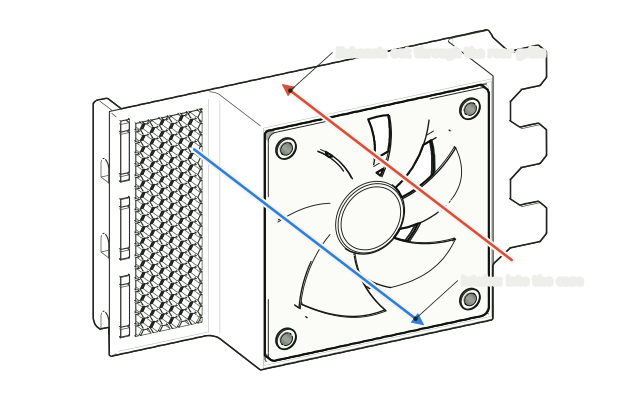 Step 1
Choose intake or exhaust
Decide which way the fan will blow: exhaust pushes warm air out through the rear grille, intake draws cool air in toward the graphics card above.
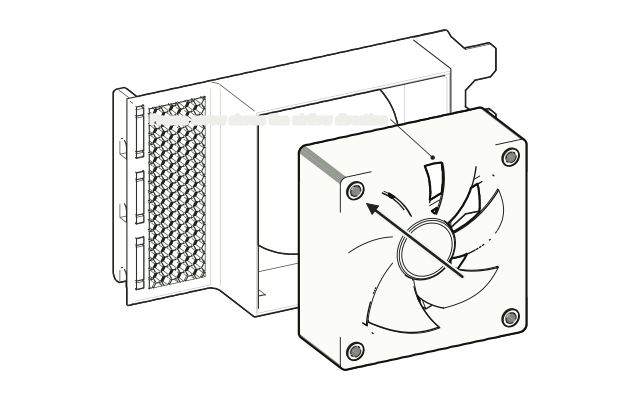 Step 2
Seat the fan
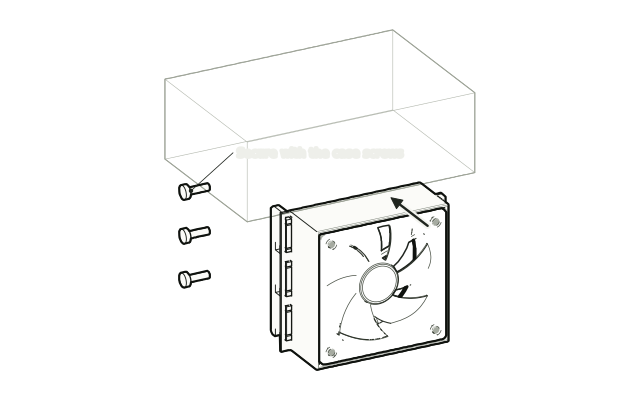
Place the 60 mm fan into the box with the frame arrow pointing the way you chose. A fan is not included.
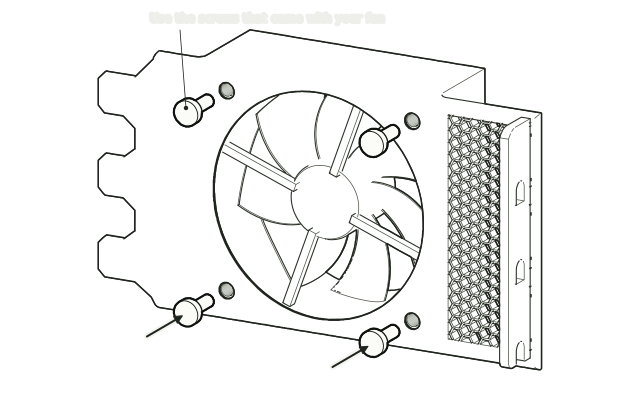 Step 3
Screw it in from the grille side
From the grille side, fix the fan through the four corner holes with the screws (or rubber mounts) that came with it. No screws are included.
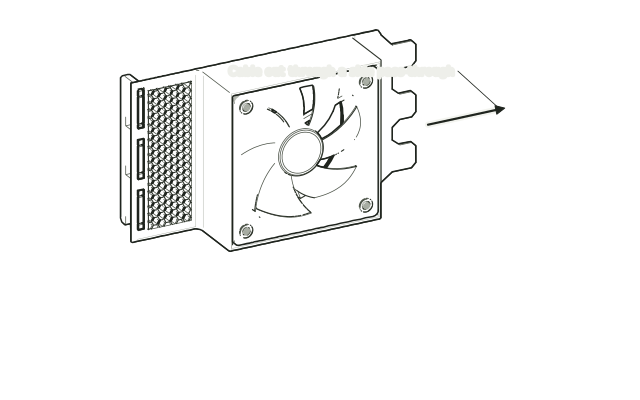 Step 4
Route the cable
Lead the fan cable out through a side pass-through so it stays clear of the blades.
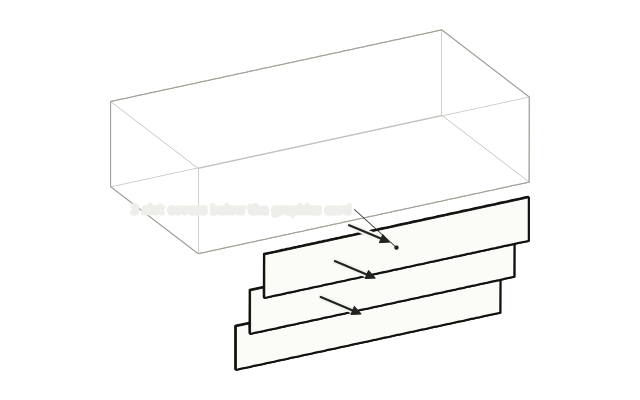 Step 5
Remove the slot covers
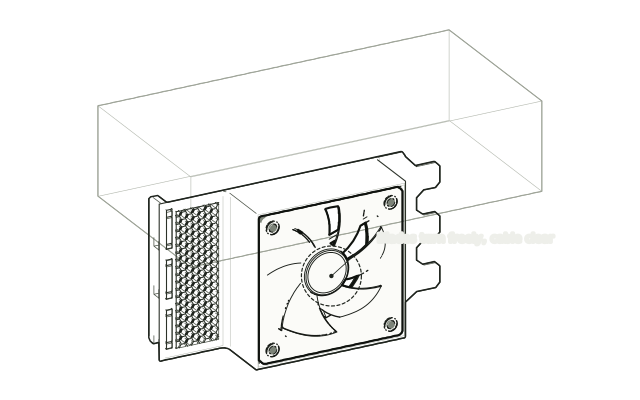
Shut down and unplug the PC. Remove the case screws and the 3 slot covers below the graphics card. Keep the screws.
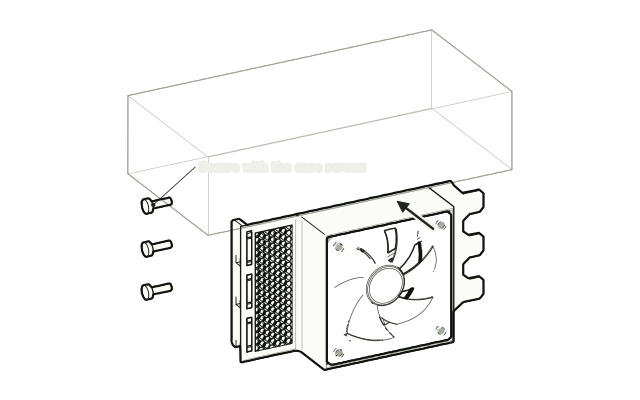 Step 6
Fit it like a card
Slide the mount into the free slots the same way as an expansion card and secure it with the case screws you removed.
 Step 7
Connect and check
Connect the fan to a fan header following its manufacturer’s instructions, check the blades turn freely and nothing touches the graphics card, then power on.
Drawn from the product’s 3D models. Cases, desks, devices and other surroundings are illustrative; drawings are not measured plans.
Care & troubleshooting
Wipe with a soft, slightly damp cloth, then dry. Avoid solvents and hot-water cleaning. If you notice vibration or contact, power down and recheck mounting and cable routing.
From the Workbench
All stories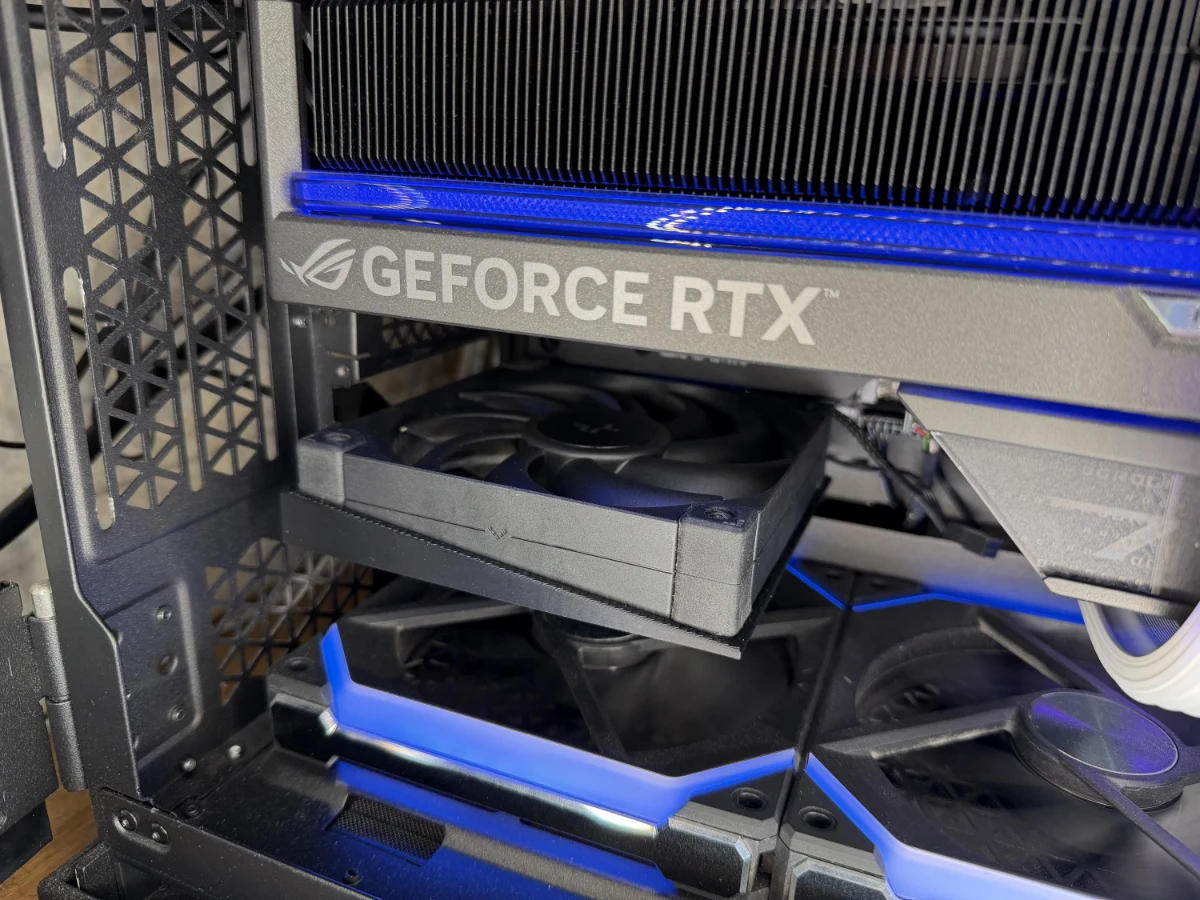
Compare fan mounts
This design beside another PCIe fan mount. Renders are framed individually, not shown at a common scale. Fans are not included.
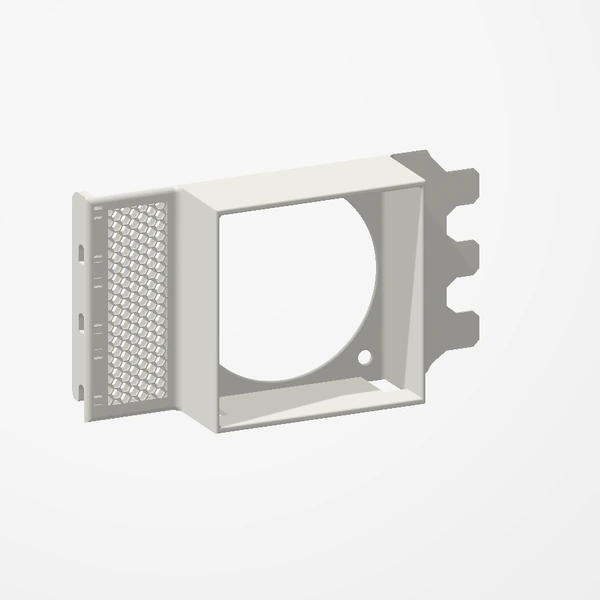
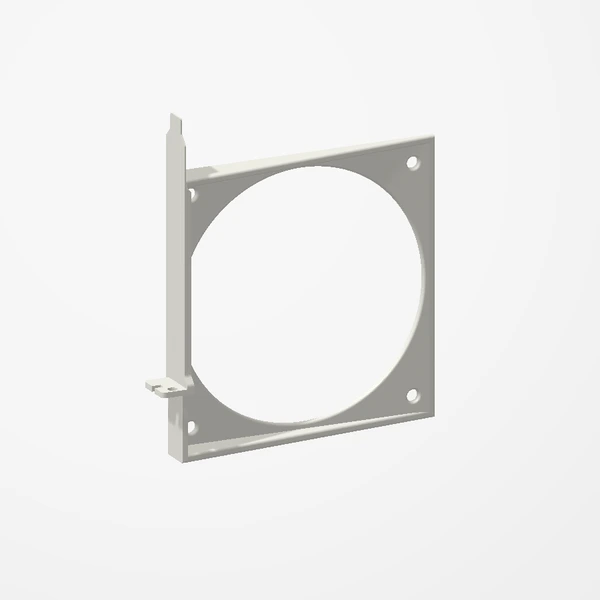
120 mm PCIe Fan Mount
- Fans
- 1 × 120 mm
- Rear slots
- 1 mounting position
- Case profile
- Allow space for the entire fan
| Design | Fans | Free slots | Case fit |
|---|---|---|---|
| Low-Profile 40 mm GPU Fan Mount | 1 × 40 mm | 2 | Low-profile supported |
| Dual 40 mm PCIe Fan Mount | 2 × 40 mm | 2 | Check case profile |
| Low-Profile 60 mm PCIe Fan Mount | 1 × 60 mm | 3 | Low-profile supported |
| High-Profile 60 mm PCIe Fan Mount | 1 × 60 mm | 3 | Full-height bracket |
| 120 mm PCIe Fan Mount | 1 × 120 mm | 1 mounting position | Allow space for the entire fan |
Slot count describes the mounting footprint, not the full internal clearance. Check fan thickness, the mount and nearby components against the listing dimensions. Choosing a PCIe fan mount